
Digital workflow6 min read
Which Scan File Format to Send Your Dental Lab
STL, PLY, OBJ, or native scanner files: what each one carries, when each makes sense, and how to agree on a file standard with your lab.
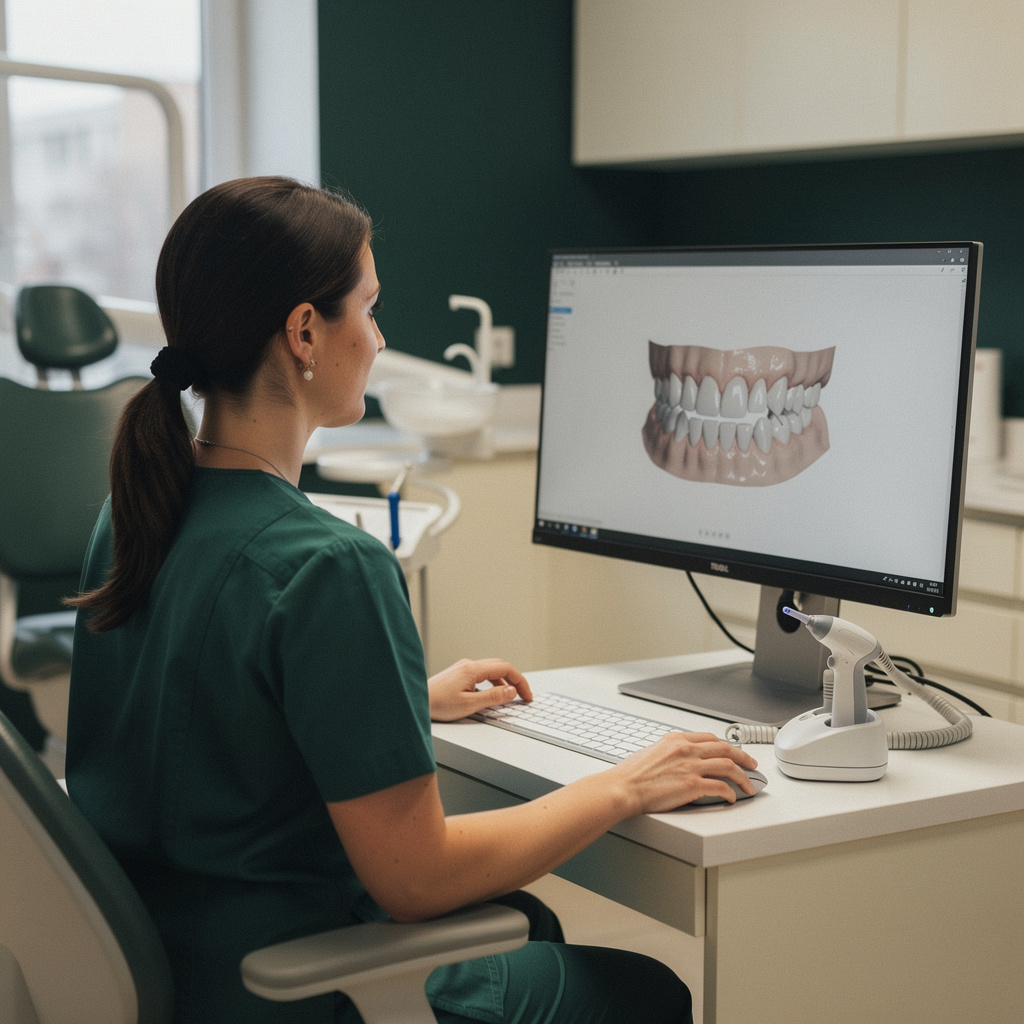
Most practices pick a scan export format once, usually when the scanner is installed, and never revisit it. That is fine until a lab asks for a rescan, a crown comes back with the wrong shade, or a case stalls because the file will not open. Many of those problems trace back to what was in the file you sent.
This article covers the formats you are most likely to encounter, what each one does and does not carry, and how to settle on a standard with your lab.
What a scan file actually contains
An intraoral scan is a 3D surface model made of many small triangles. Depending on the format, it may also carry color or texture, and in some systems it carries extra information the lab software can use.
STL
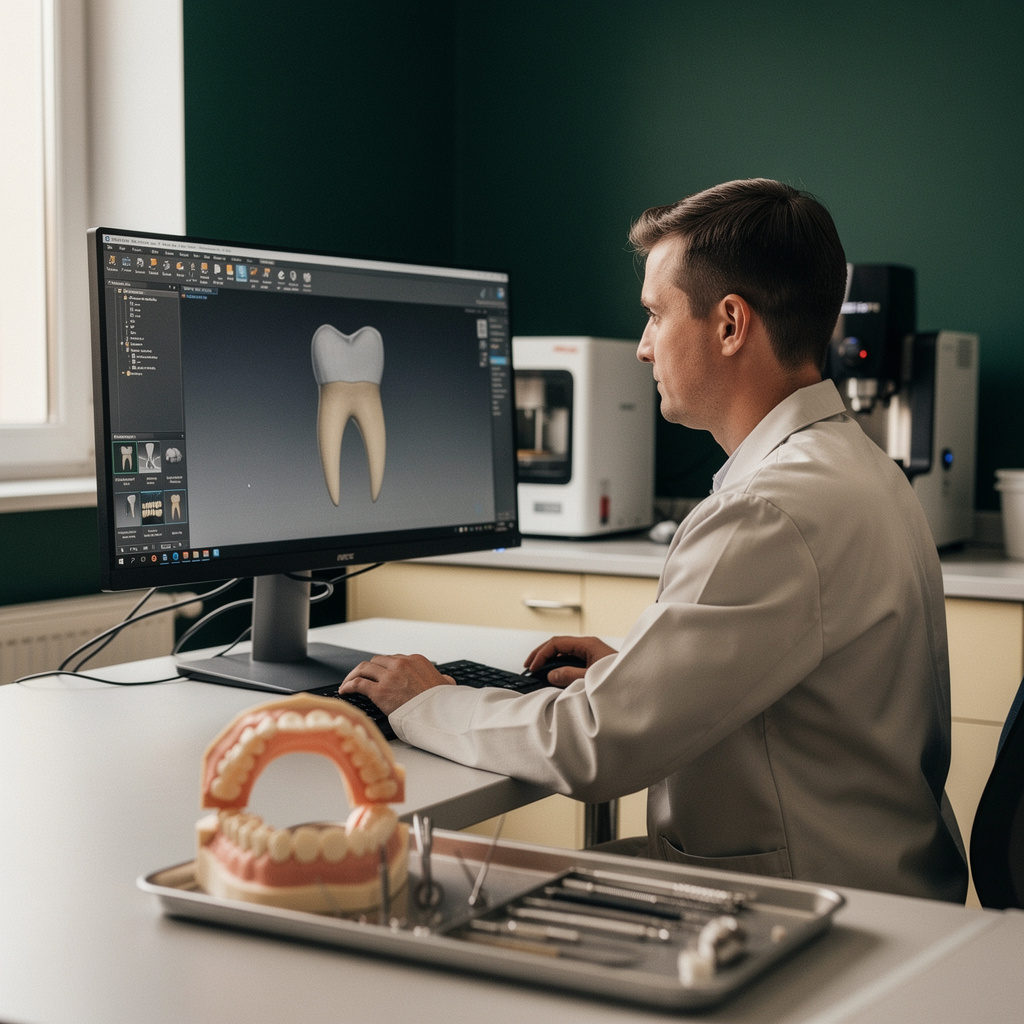
STL is the most widely supported format in dental CAD software. It stores surface geometry only.
- It has no color or texture data.
- It is simple, and nearly every lab can open it.
- Each arch is usually a separate file, so alignment between files matters.
- It carries no margin marking, bite notes, or prescription details from your scanner software.
For a standard single crown or bridge where the lab designs from geometry, STL is often enough. It is the safe default.
PLY
PLY can store color along with geometry. That makes it useful when the lab needs to see tissue color, preparation boundaries, or the scanner's shade capture. Labs doing detailed margin work or working with gingival color often prefer it.
The tradeoff is file size and software support. Some older lab workstations handle PLY less smoothly, and not every scanner exports it in the same way.
OBJ
OBJ can carry color and texture, usually with a separate texture image file. It shows up in some workflows, but it is less common than STL or PLY for routine restorative cases. If a lab asks for OBJ, make sure the associated texture files travel with it, because a lone OBJ file can arrive looking gray or incomplete.
Native or proprietary files
Most scanner platforms have their own file type or cloud case format. These can hold more than an exported mesh: marked margins, die information, scan sequence, bite registration, and the digital prescription. Labs that use the same platform, or a connected one, can receive all of that without you exporting anything.
The tradeoffs:
- The lab has to be connected to your platform or have the right software.
- Some platforms limit or charge for exports in open formats. Terms vary by vendor and subscription, so check yours.
- If you switch labs, not every new lab will be connected to your system.
Choosing a format by case type
There is no universal answer, but these starting points are reasonable. Confirm each with your lab.
| Case type | Reasonable starting point | | --- | --- | | Single crown, inlay, onlay | STL, or native file if the lab is connected | | Multi-unit bridge | Native file or STL with clear bite scan | | Implant restoration with scan bodies | Native file or STL, plus the scan body details in the prescription | | Anterior esthetic case | Color-capable format or native file, plus photos | | Removable, night guard, or study models | STL, usually sufficient | | Orthodontic appliances | Whatever the lab's design software expects, so ask |
The clinician decides what information a case needs. The point here is only to make sure the format can carry it.
The problems that cost the most time
Format choice is only part of it. These issues cause more delays than choosing PLY over STL.
Missing or misaligned files
A complete case often needs the prepared arch, the opposing arch, and a bite scan. If one is missing, the lab has to stop and ask. Send them with consistent naming so nobody guesses which is which.
A simple convention works well:
- Patient identifier or case number, not a full name in the file title
- Arch or scan type: upper, lower, bite, pre-op
- Date
Margins the lab cannot see
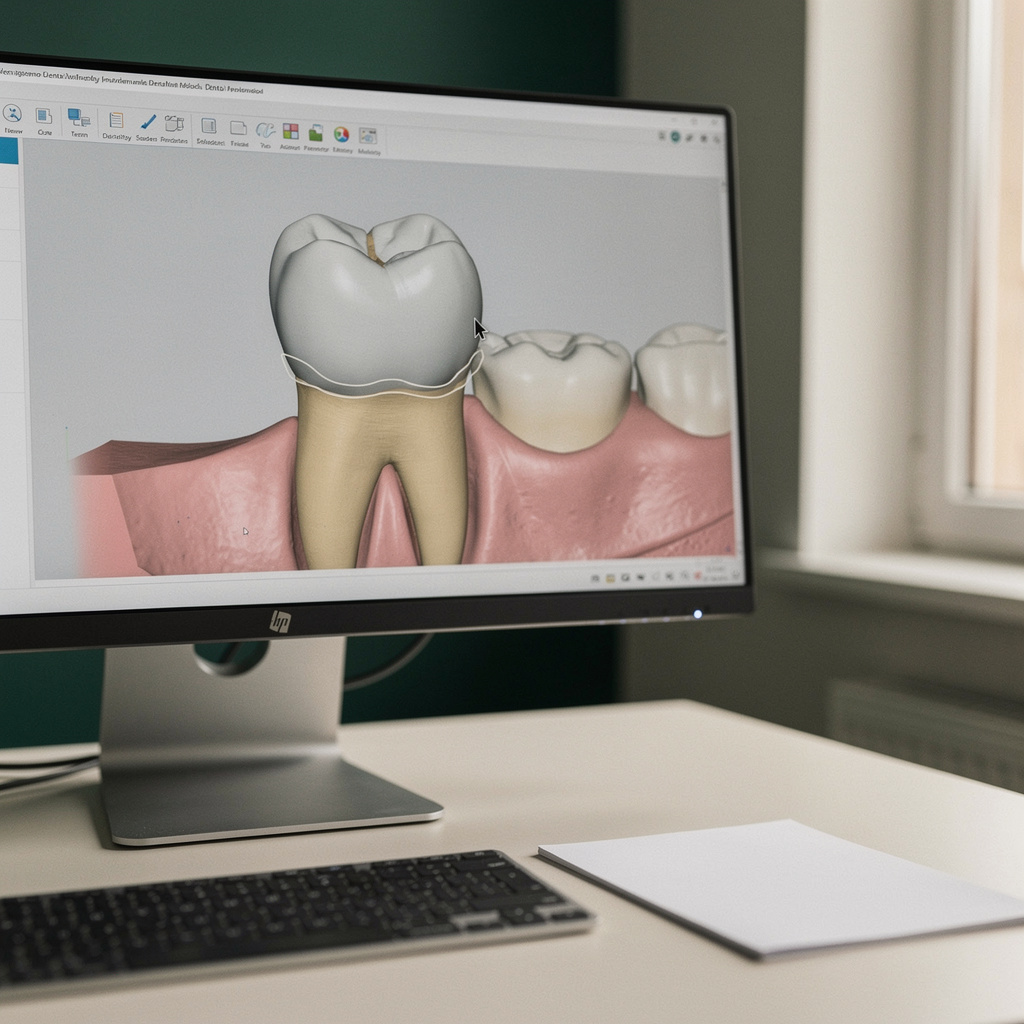
If a margin is covered by tissue, blood, or saliva, the file will show a blurred or invented edge. The format will not fix this. A lab can flag a poor margin, but it cannot reliably recover one. Review the scan on screen before you send it, zooming in on every margin.
Pre-op scans left out
A pre-op scan or a scan of the existing restoration can help a lab match contours. If your workflow includes them, send them as clearly labeled separate files rather than hoping the lab will ask.
Unit and orientation errors
Occasionally a file exported through a third-party converter ends up with a different scale or orientation. If a lab reports that a model looks wrong in size or position, check how the file was exported before you assume the scan itself was bad.
Scanner software updates
An update can change export defaults. If a lab suddenly starts reporting odd files, ask whether anything changed on your side.
Agree on a file standard with your lab
If you work with one or two labs most of the time, a short written standard saves rework. It does not need to be long. Cover these points:
- Primary format. Which format the lab prefers for each common case type.
- Delivery method. Direct platform connection, secure upload, or another route. Avoid regular email attachments for patient data unless your privacy policies and the lab's both allow it.
- Required files per case. Prepared arch, opposing arch, bite, and any pre-op or adjacent scans.
- Naming convention. One pattern everyone follows.
- What goes in the prescription, not the file. Shade, material, margin design preferences, and special instructions should be written out, not assumed to live in the scan.
- What happens on a bad scan. Who contacts whom, how fast, and whether the lab will flag problems before starting design.
Post it where your assistants and scanning team can find it. The people capturing and exporting scans are often not the people who agreed to the standard.
Run a test case before changing labs or scanners
When you add a new lab or change scanners, do not make the first real patient case the test. Send a low-stakes case, or a scan of a typodont or a staff member if your lab agrees. Check that:
- The file opens without conversion.
- All scans are present and aligned.
- Color data arrived if you expected it.
- The lab can see and work with your margins.
- The case record shows what you sent.
This takes a short time and often reveals a mismatch that would otherwise show up as a delayed case.
What to do this week
- Find out what your scanner exports and whether any export options carry extra fees or limits.
- Ask each lab you use which format they prefer for your five most common case types.
- Write the one-page file standard described above and share it with your team.
- Rename any inconsistent file patterns on your system.
- Add a pre-send screen check for margins, bite, and completeness.
If you are comparing labs, add file handling to your questions alongside turnaround and price. A lab that accepts your format cleanly and tells you quickly when a scan has a problem is easier to work with than one that is slightly cheaper but requires conversions. On Dintle you can compare labs and see per-case prices up front, then send cases and track them through delivery, so a file-format question is worth settling before your first order rather than after.